
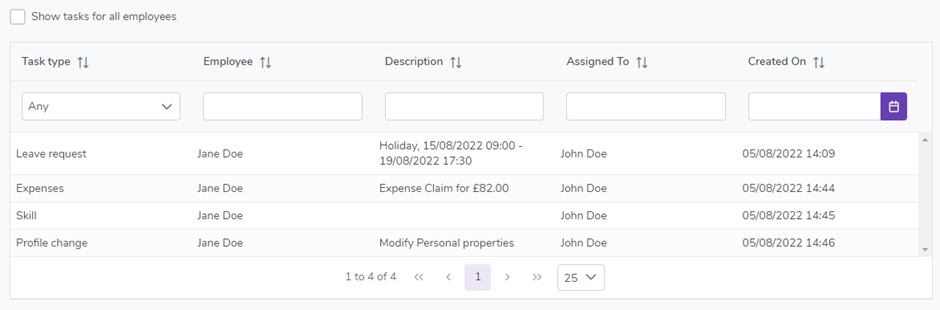
Any action in HRPlanner that requires Authorisation is raised as a Task. You can check for any Tasks that are outstanding for you in two different ways.
One is to simply click the Tasks menu and see if any Tasks are showing in the list. The other and quicker way is to simply look at the bell icon in the top right corner.
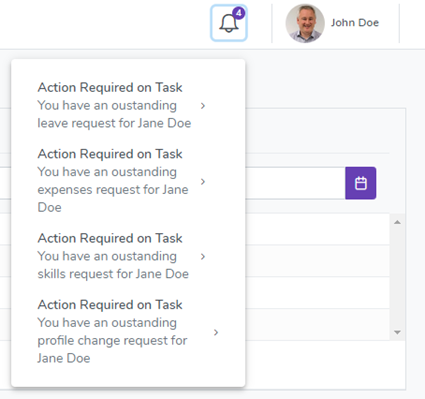
You will see the total number of Tasks waiting for you to action as a number on the bell. Clicking on the bell will display those Tasks and then clicking on any one of the Tasks will take you to that Task so you can action it.

When you are viewing the Task screen you can also tick the box at the top to see all outstanding Tasks for all employees where you have the appropriate access rights and action those Tasks on their behalf.
Task Types
There are currently 5 different Task types that can require action.
1. Leave Request
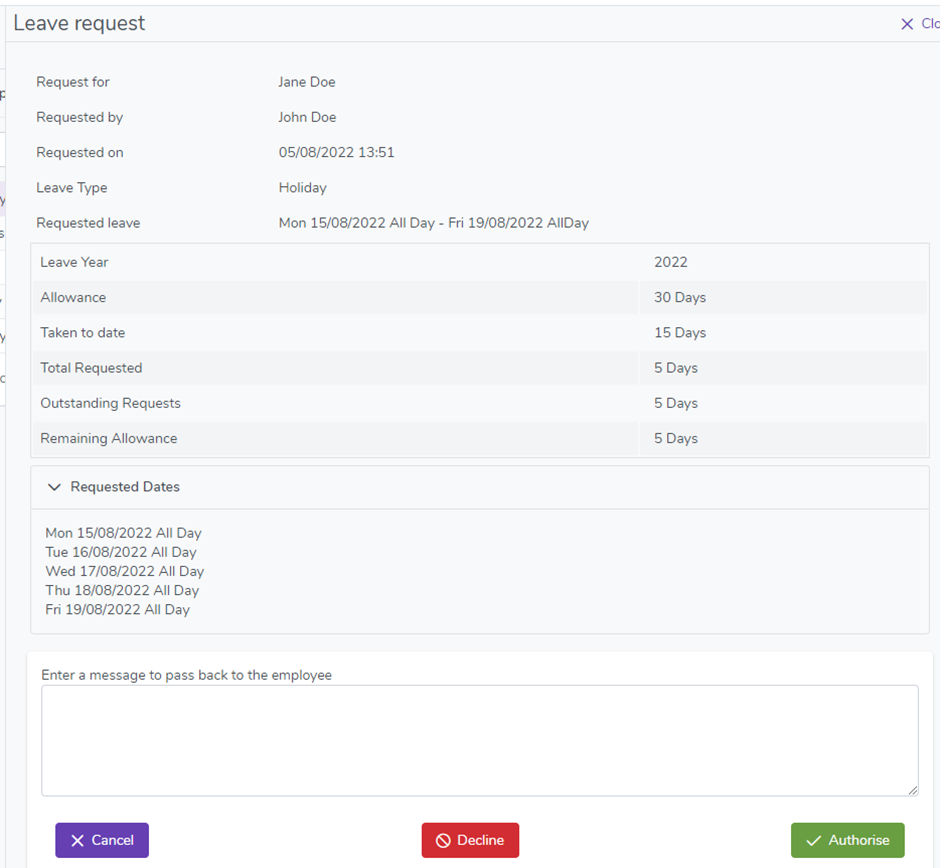
When a request for leave is made for an employee that requires authorisation, a Leave Request task type is created for the first authoriser. If the employee has multiple authorisers then the next task, for the next authoriser, is only created when and if the first authoriser Authorises the request. If the first authoriser Declines the request then no further Task is created as no further action is required.
The Task screen should display all of the information required for the Authoriser to make a well-informed decision on whether to Authorise or Decline the Request.
2. Allowance Change
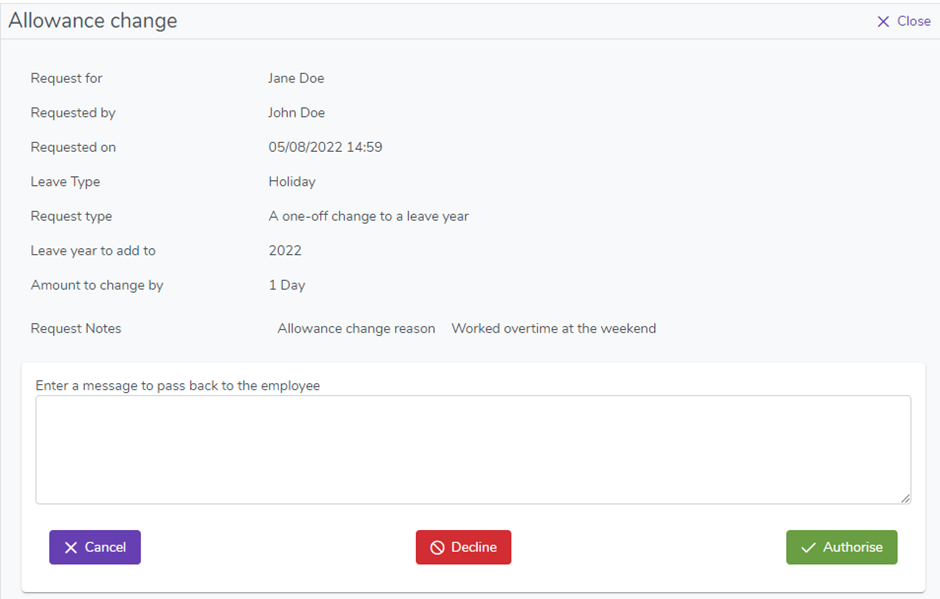
When a request is made to change the Allowance for an employee that requires authorisation, an Allowance Change task type is created for the first authoriser. If the employee has multiple authorisers then the next task, for the next authoriser, is only created when and if the first authoriser Authorises the request. If the first authoriser Declines the request then no further Task is created as no further action is required.
The Task screen should display all of the information required for the Authoriser to make a well-informed decision on whether to Authorise or Decline the Request.
3. Profile Change
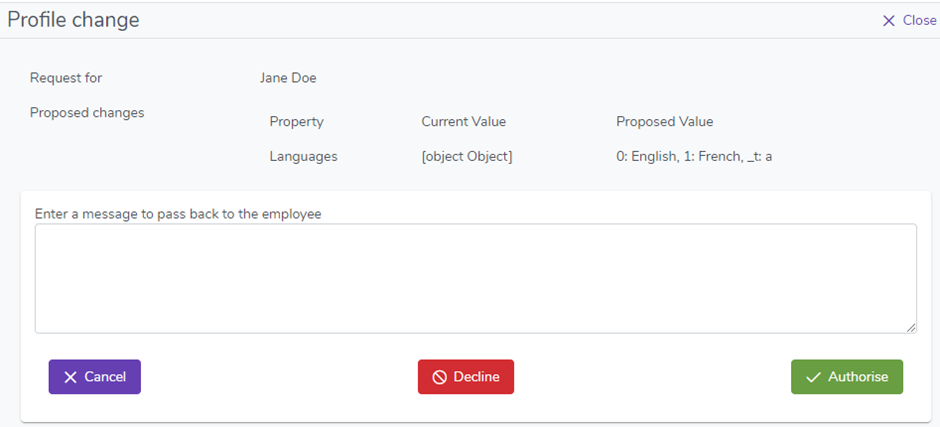
When a change is made to the profile of an employee by an employee that requires authorisation, a Profile Change task type is created for the first authoriser. If the employee has multiple authorisers then the next task, for the next authoriser, is only created when and if the first authoriser Authorises the request. If the first authoriser Declines the request then no further Task is created as no further action is required.
The Task screen displays the Property, Current and Proposed Values for all of the information that was changed in the request which allows the Authoriser to make a well-informed decision on whether to Authorise or Decline the change.
4. Expenses Request
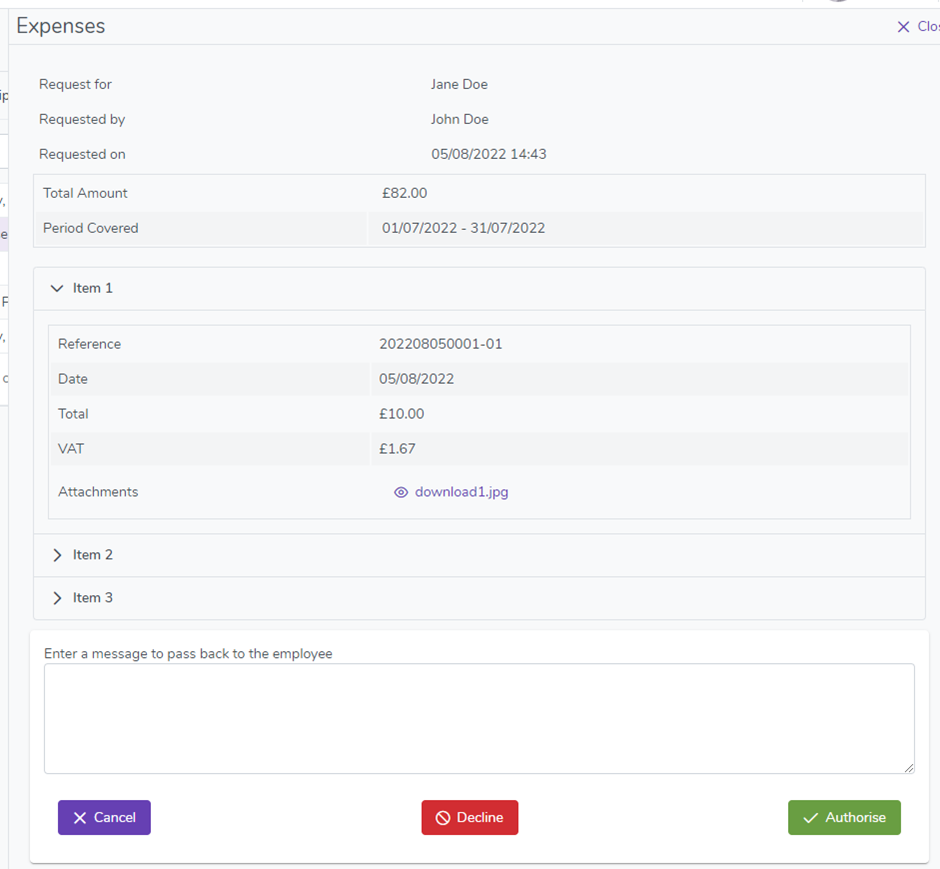
When an Expense is submitted for Approval for an employee that requires authorisation, an Expenses task type is created for the first authoriser. If the employee has multiple authorisers then the next task, for the next authoriser, is only created when and if the first authoriser Authorises the request. If the first authoriser Declines the request then no further Task is created as no further action is required.
The Task screen displays the Expense Claim and all Claim Items with quick links to view the attachments allowing the Authoriser to make a well-informed decision on whether to Authorise or Decline the Expense.
5. Skill Request
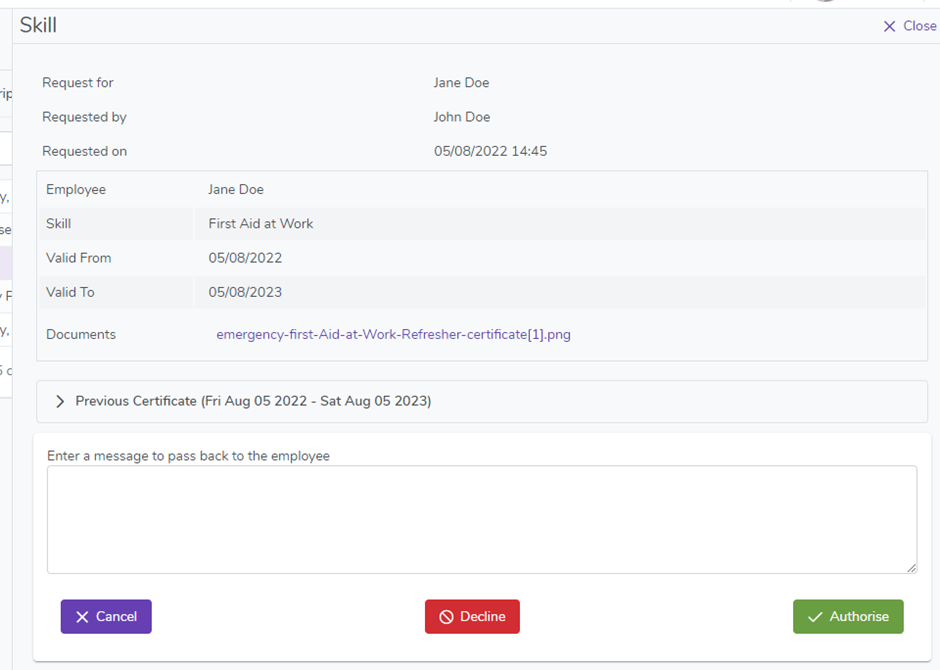
When a Skill and Certificate are submitted for Approval for an employee that requires authorisation, a Skill task type is created for the first authoriser. If the employee has multiple authorisers then the next task, for the next authoriser, is only created when and if the first authoriser Authorises the request. If the first authoriser Declines the request then no further Task is created as no further action is required.
The Task screen displays the Skill along with all current and previous Certificates allowing the Authoriser to make a well-informed decision on whether to Authorise or Decline the new Skill or Certificate renewal.