

Planner Events allow you to display special occasions on the Planner for a single or range of dates.
When you create a Planner Event a message is displayed to all matching Employees looking at their Planners and they can also be configured to block any Employee Request for Leave that requires authorisation.
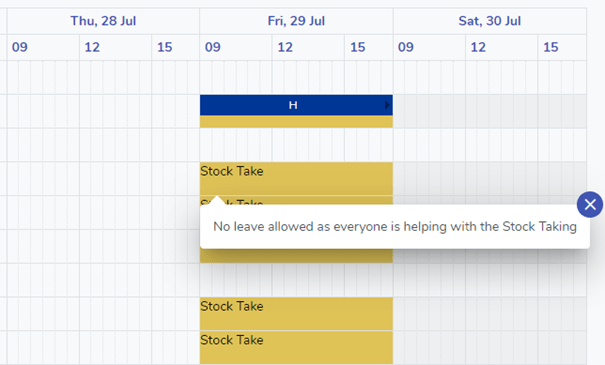
A good example of a Planner Event where you may want everyone to be in and know about it would be Stock Take Day!
A Planner Event is made up of the following:
Name
The name of the event which is displayed on the Planner for Employees to see.
Description
More information about the event which is displayed when an Employee clicks on the event in the Planner.
Alert text (shown on the request page)
If Employee Requests are allowed then this text is displayed to them on their Request page

Type
The Type defines the type of data that the Planner Event applies to, and the available options are:
- Employee – The Planner Event is for the selected Employees
- Company – The Planner Event is for all Employees in the selected Company(s)
- Department – The Planner Event is for all Employees in the selected Department(s)
- Employee Roles – The Planner Event is for the Employees in the selected Employee Role(s)
Dates
Insert the Date(s) that the Planner Event is for and choose the appropriate request actions for each date:
Request option
Choose what to do with any Employee Leave Requests during this date from one of the following options:
Employees can request leave (authorisers are alerted)
This will allow the request to continue but an alert will be shown to both the Employee and their Authoriser(s) to notify them that this Planner Event is on.
Block requests to non-administrators
This would prevent the Employee from being able to submit the request. They would need to speak to a user with the appropriate Admin rights to submit the request on their behalf.