

The security mechanism that controls what your employees can view and edit on the platform is configured by using Employee Roles.
Each role has one or more access rights and employees are then assigned to the role. The access rights that are granted to a user, through Employee Roles, are cumulative which means that any employee assigned to a role is granted the access rights configured for that role in addition to any access rights they have been granted from other roles.
System Roles
There are 2 System Roles that are predefined and cannot be removed:
All Employees
The All Employees role is automatically applied to all active employees so you cannot add or remove employees to this role. All other roles are derived from this system role and inherit the settings configured for this role in addition to any you add.
i.e If an employee is assigned to a new role you create called “Team Leaders”, the access rights for that employee would be calculated from the System Role All Employees + the new role Team Leaders.
You cannot deny access rights using a role if the access rights have already been granted by the All Employees role.
Organisation Administrator
The Organisation Administrator role grants full access rights across the Organisation to any employee who is in this role. Because of the high level of access this special role should only be assigned to 1 or 2 employees.
If you would like to know more about creating new Employee Roles then read on otherwise you can skip to the next section, Employee – Skills.
Custom Roles
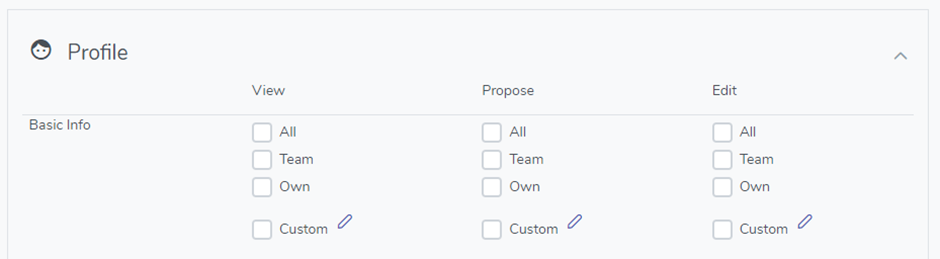
Custom roles allow you to provide different levels of access across your organisation.
The best way to make use of Custom Roles is to create them based on Job Types, so a good example would be a role called “Team Leaders” that included the employees across your organisation that fit that Job Type. You would then add any permissions, which are called access rights, that a Team Leader would need to have.
Don’t forget that any access rights you define would be in addition to the access rights already defined in the All Employees role as that is assigned to every employee.
A Custom Role is configured with the following information:
Name
This is simply the name of the role as you will see it in the system.
Members
This is a list of employees who should be given the access rights defined in this role.
Access Rights
These are the specific permissions you want to give to the employees in this role. The Access Rights define what permission to give, the Access Right Permission, and what data to apply this permission to, the Access Right Scope.
Access Right Permissions
Each of the sections below can have custom Access Rights defined which are the permissions you give to your employees.
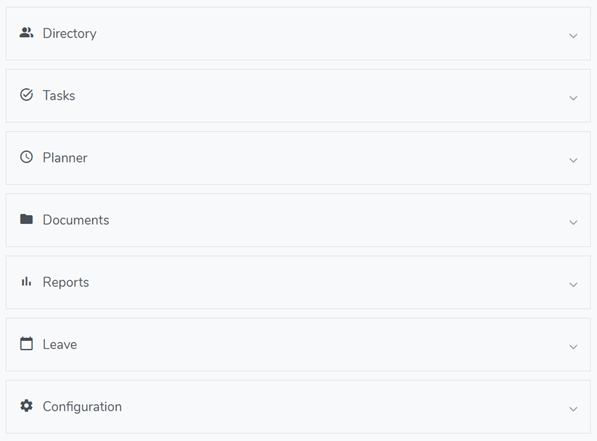
Depending on the section that you wish to grant permission for you may see one, two or all three of the following Access Right Permission columns:
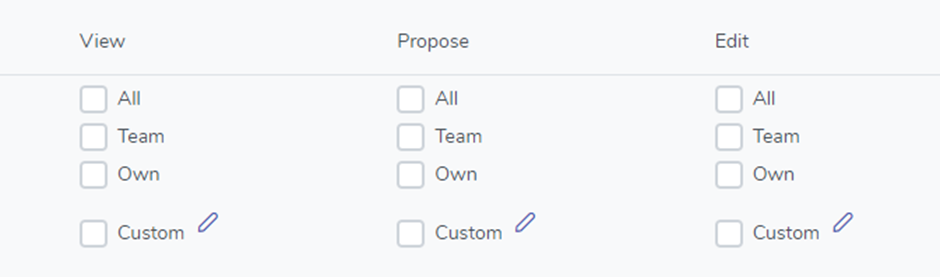
View
The employees in this role can view the scoped data.
Propose
The employees in this role can propose a change to the scoped data which must be Authorised if there is an Authorisation Process in place otherwise the proposal is automatically authorised and applied.
Edit
The employees in this role can edit and delete any of the scoped data without any authorisation required.
Access Right Scope
The Access Right Scope is the filter of employee data to apply the permission to.
Depending on the section that you wish to grant permission for you may see one, two, three or all four of the Access Right Scope checkboxes:
All
The Access Right Permission should apply to all employee data
Team
The Access Right Permission only applies to members of the current employees Team. Their Team is constructed from the employees who are assigned to them directly by using the Line Manager Attribute as well as any employee who is assigned underneath.
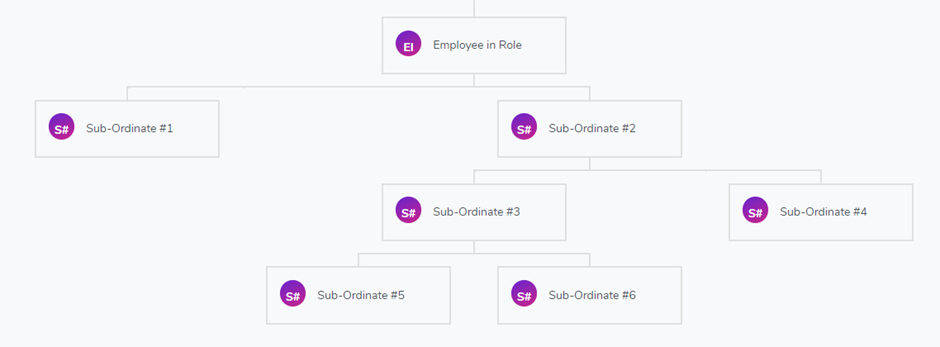
In the screenshot above the Employee in Role has 6 employees in their Team
Own
The Access Right Permission only applies to their own data. That is the data of the employee logged in and in this role. Each employee will only see their own data and not data belonging to other employees.
Custom
You can control the Access Right Scope by applying one or more custom rules where each rule must be true.
A simple example of this might be: The Employee Type must be “Full Time” and belong to the same Department as the employee in the role or a Department underneath their Department.
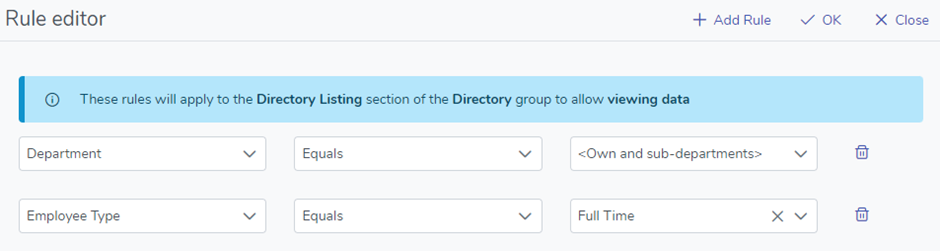
The resulting data would be different depending on which employee in the role was logged in.