
It is very easy to use Office 365 for Single Sign On with HR Planner and simply involves adding a App Registration to Azure AD.
Step 1
Login into your Office 365 Azure Active Directory Admin centre by navigating here https://aad.portal.azure.com/
Step 2
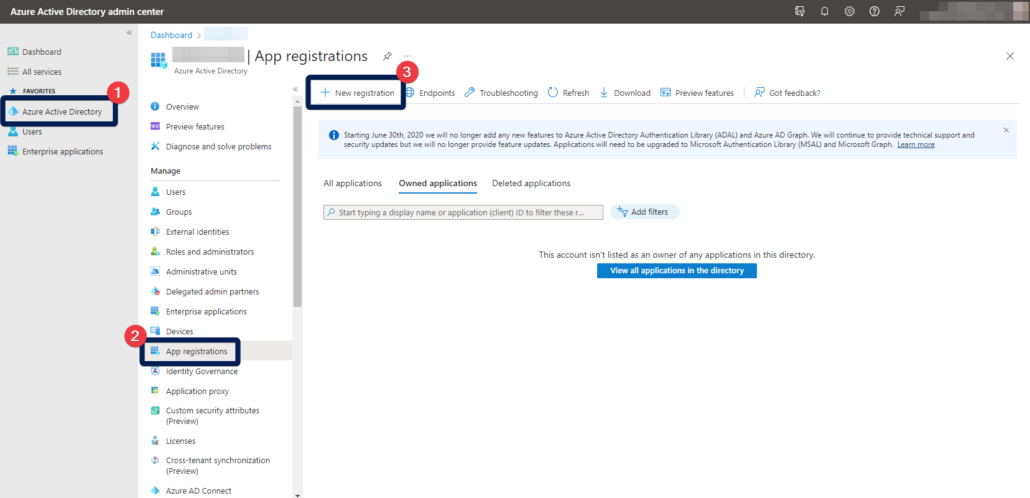
Navigate to Azure Active Directory -> App Registrations -> New registration
Step 3
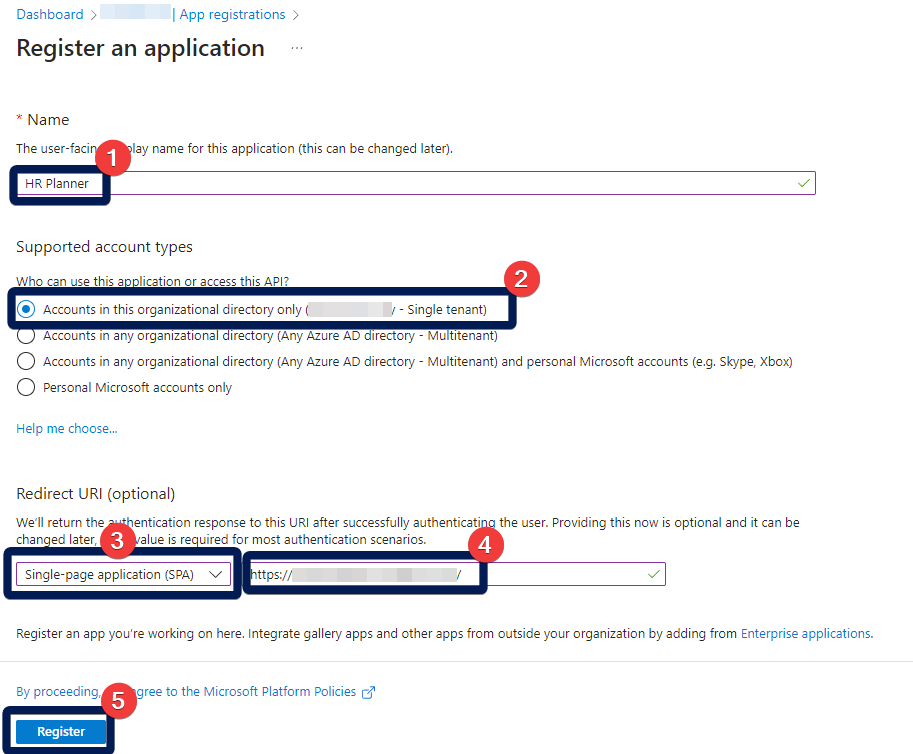
Enter the following information
Name: HR Planner
Supported account types: “Accounts in this organizational directory only (xxxxxx only – Single tenant)”
Redirect URL: Choose “Single-page application (SPA)” and then enter the URL for your HR Planner system (i.e. https://mycompany.onhrplanner.uk)
Finally click Register
Step 4
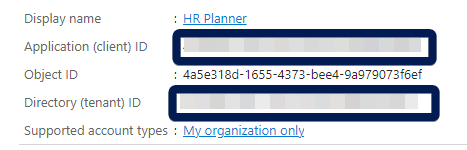
Copy the “Application (client) ID” and “Directory (tenant) ID” from the resulting screen. You can now close the Azure Active Directory Admin browser window as we are finished with it
Step 5
Login to your HR Planner system as an Organisation Administrator and navigate to the Settings -> Setup screen.
Paste the values you coped from the final screen in the Azure Active Directory Admin area as follows
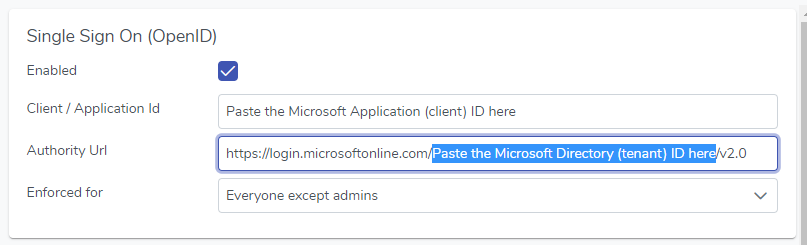
The Authority Url is as follows:
https://login.microsoftonline.com/”Directory (tenant) ID”/v2.0
i.e. if your Directory (tenant) ID was 11111111-222222-333333-444444444 your Authority URL would be
https://login.microsoftonline.com/11111111-222222-333333-444444444/v2.0
After you click Save Changes you will now be able to login using Single Sign On.
If you have any problems then please check that your Office 365 / Azure Username matches your HR Planner username under Access details.